Introduction
What is NeuroVecta?
Getting Started
Logging In
Quick Create UI
Sidebar Menu
Working with Files
Vector Databases
Uploading Files
Indexing Files
Querying Documents
Citation Rationales
FAQs
Contact

Sidebar Menu
Navigate and manage your databases and chat sessions
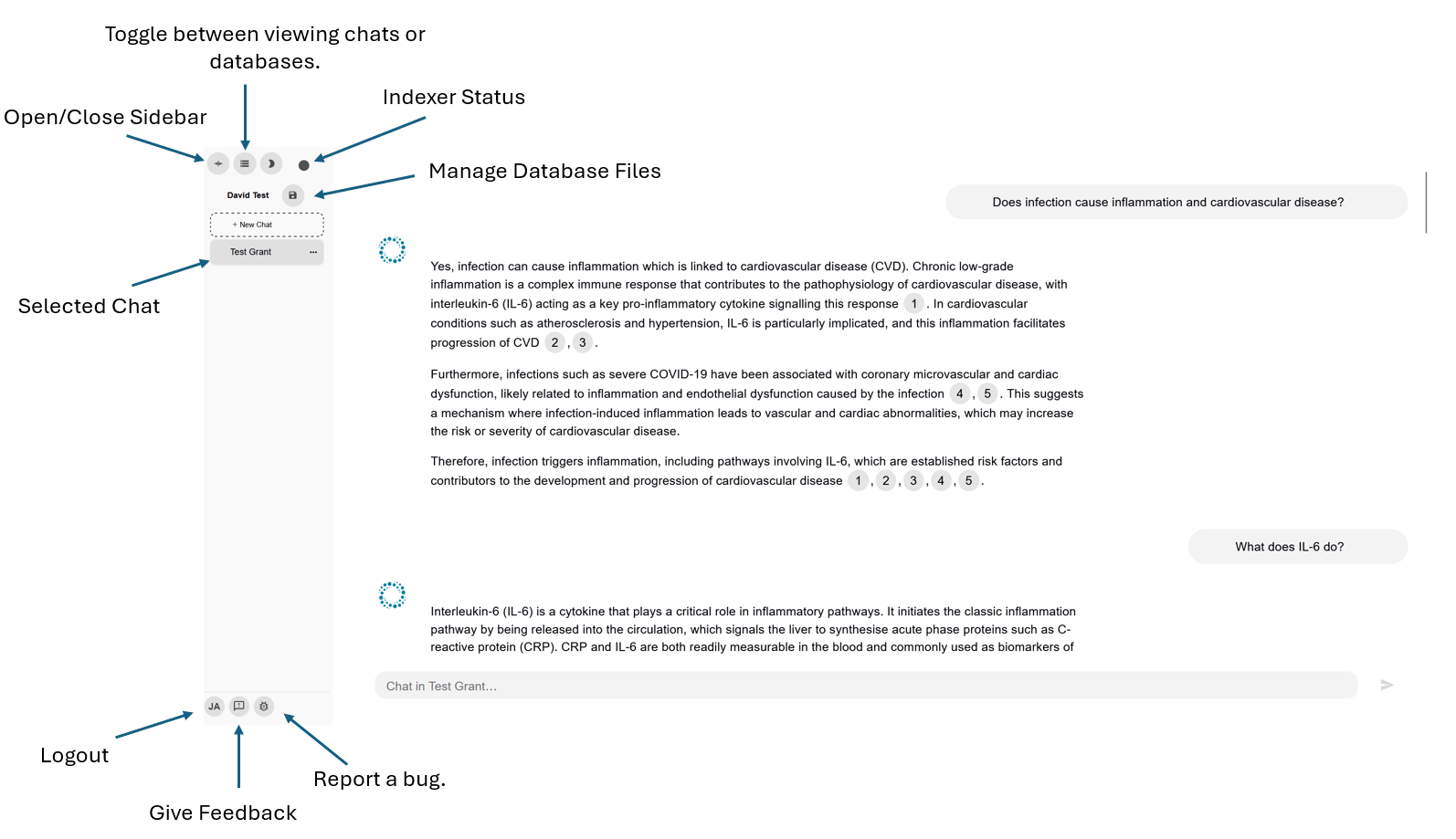
The left-hand sidebar provides full access to NeuroVecta's tools, allowing you to manage databases, browse chats, and manage files per database.
Sidebar Features
Databases and Chats
Browse existing databases and open previous chat sessions. The workflow is:
- Select a database first.
- Create/Choose a chat session to continue.
This ensures your queries are scoped to the correct documents.
File Manager
View, add, or remove files in the selected database. All changes are immediately reflected in the indexing queue. This is your central hub for document management within each database.
New Chat/Database Creation
Initiate new databases and chats without using Quick Create. This gives you more control over the creation process and is useful for experienced users who want to set up specific configurations without the need to use Quick Create.
Workflow Example
Scenario: Continuing a Previous Chat:
- Open the sidebar and locate your databases.
- Click on the database you want to work with.
- View the list of chat sessions associated with that database.
- Select the chat you want to continue.
- Start asking questions - NeuroVecta will remember the context from your previous queries.
Scenario: Adding Files to an Existing Database:
- Select the database from the sidebar.
- Click the "File Manager" button.
- Review currently uploaded files.
- Click "Add New Files" to upload additional documents.
- Wait for indexing to complete shown by the pulsing indexer status sidebar icon before querying the new content.
Pro Tip
The sidebar is always accessible, even during chat sessions. You can switch between databases and chats at any time without losing your work.