
Introduction
What is NeuroVecta?
Getting Started
Logging In
Quick Create UI
Sidebar Menu
Working with Files
Vector Databases
Uploading Files
Indexing Files
Querying Documents
Citation Rationales
FAQs
Contact

Logging In
Accessing your NeuroVecta account securely
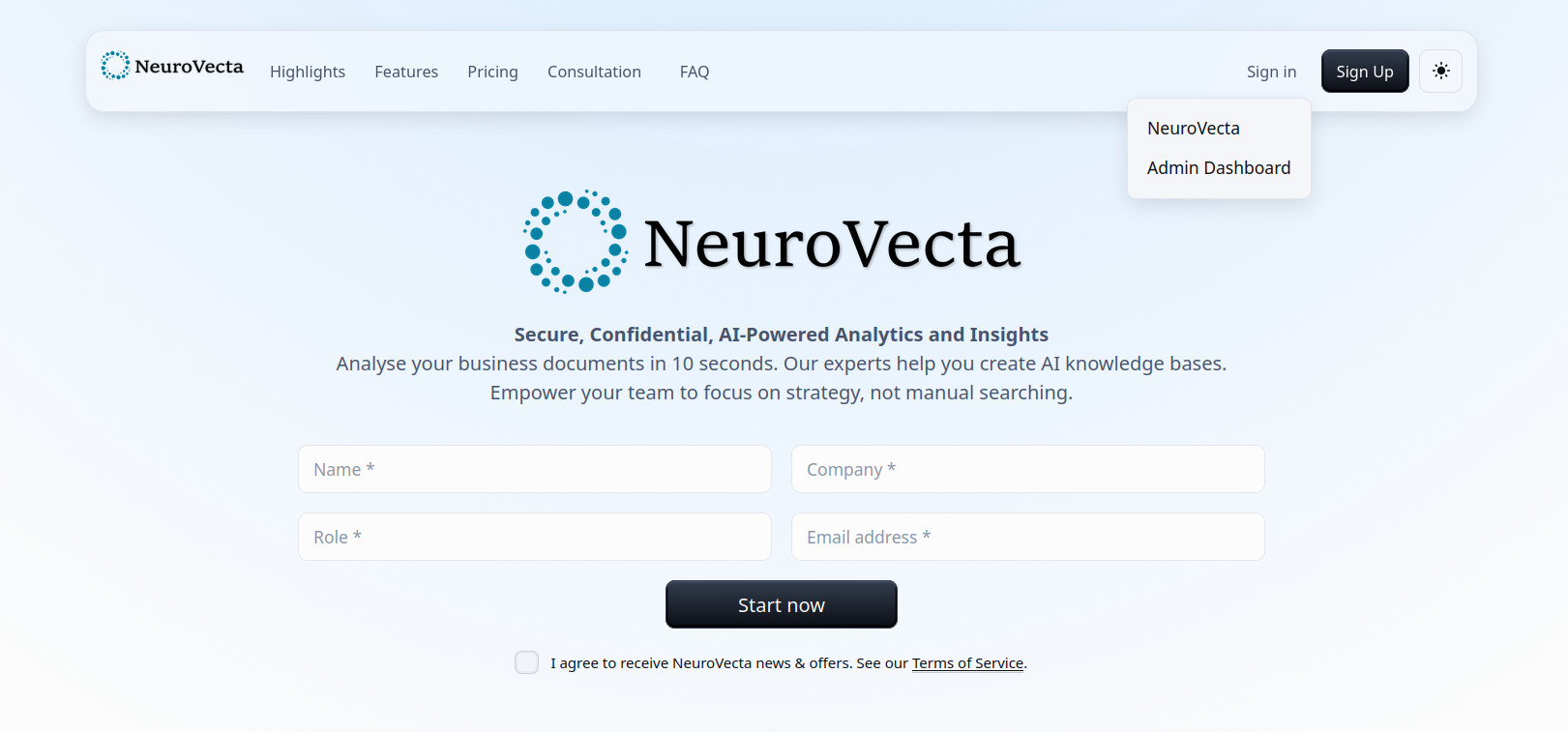
NeuroVecta can be accessed from www.neurovecta.com by signing in from the navigation bar at the top of the page.
First-Time Login
1. Activate your email (free accounts)
After free signup, open the activation link we email you. Until you click it, sign-in is blocked. Paid accounts skip this step (payment already verifies ownership).
2. Navigate to NeuroVecta
Go to www.neurovecta.com and click the “Sign in” button in the navigation bar.
3. Sign in with your password
Free plans sign in with email and password only. Paid plans also enrol Microsoft Authenticator (two-factor authentication) to protect confidential workspaces.
Returning Users
Once you've set up your account, simply navigate to www.neurovecta.com and sign in with your credentials.
On paid plans you'll be prompted for the verification code from your authenticator app.
Troubleshooting
Forgot Password
If you can't remember your password, click the “Forgot Password” link on the login page. You'll receive an email with instructions to reset your password.
Didn't get the activation email
Check spam/junk, then use “Resend activation email” on the check-email page. Contact support@neurovecta.com if the link has expired.
2FA Issues (paid plans)
If you're having trouble with two-factor authentication on a paid plan, contact support at support@neurovecta.com for assistance.
Next Steps
Once you're logged in, learn about the Quick Create UI to start using NeuroVecta right away.