
Introduction
What is NeuroVecta?
Getting Started
Logging In
Quick Create UI
Sidebar Menu
Working with Files
Vector Databases
Uploading Files
Indexing Files
Querying Documents
Citation Rationales
FAQs
Contact

Uploading Files
Add and manage documents in your databases
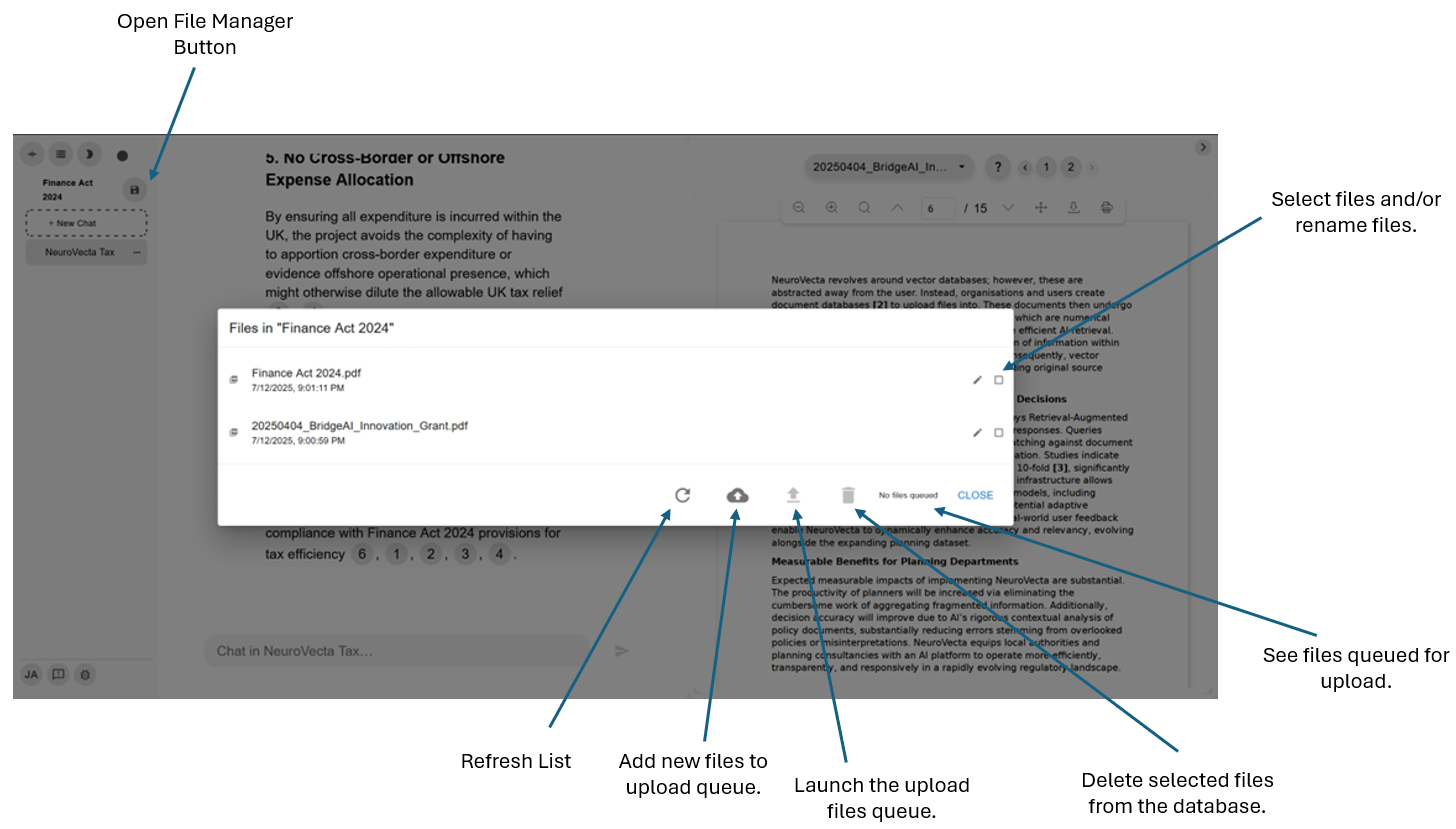
Accessing the File Manager
Click the File Manager button in the sidebar to manage documents in your database. View existing files, upload new ones, rename documents, or delete files you no longer need.
Uploading Files
To add files to your database:
Click the "Add new files to upload queue" button.
Select one or multiple files from your system.
Click "Launch upload" to begin the upload process.
Files will automatically queue for indexing after upload completes.
Supported File Formats
NeuroVecta currently supports the following document formats:
PDF (.pdf)
Word documents (.docx)
Markdown (.md)
Additional file types will be added in future updates.
Best Practices
Organise by project: Create separate databases for different projects to improve query relevance.
Use descriptive names: Clear file names make it easier to identify sources in citations.
Batch upload: Add multiple related files at once to ensure they're indexed together.
Next Steps
Learn about the indexing process and how NeuroVecta prepares your documents for AI queries.